How to Check Globe Balance – A Complete Guide to Globe Data and Load Inquiry
Staying connected is very important today. Whether you are using the internet for work, school, or talking to family, you need to know how much load or data you have left. If you are a Globe Telecom user in the Philippines, there are several easy ways to monitor your account.
You can check your status using the official app, sending a text message, dialing a special code, or calling a service representative. This guide will show you exactly how to do it step-by-step.
Before we begin, remember that SIM registration is required by law in the Philippines. If you have a new SIM, make sure it is registered so you can use these services without any problems.
How to Check Your Globe Balance
Globe gives you four main choices to see your remaining load or data. These methods are simple and usually free. Here is how you can use each one.
1. Use GlobeOne App
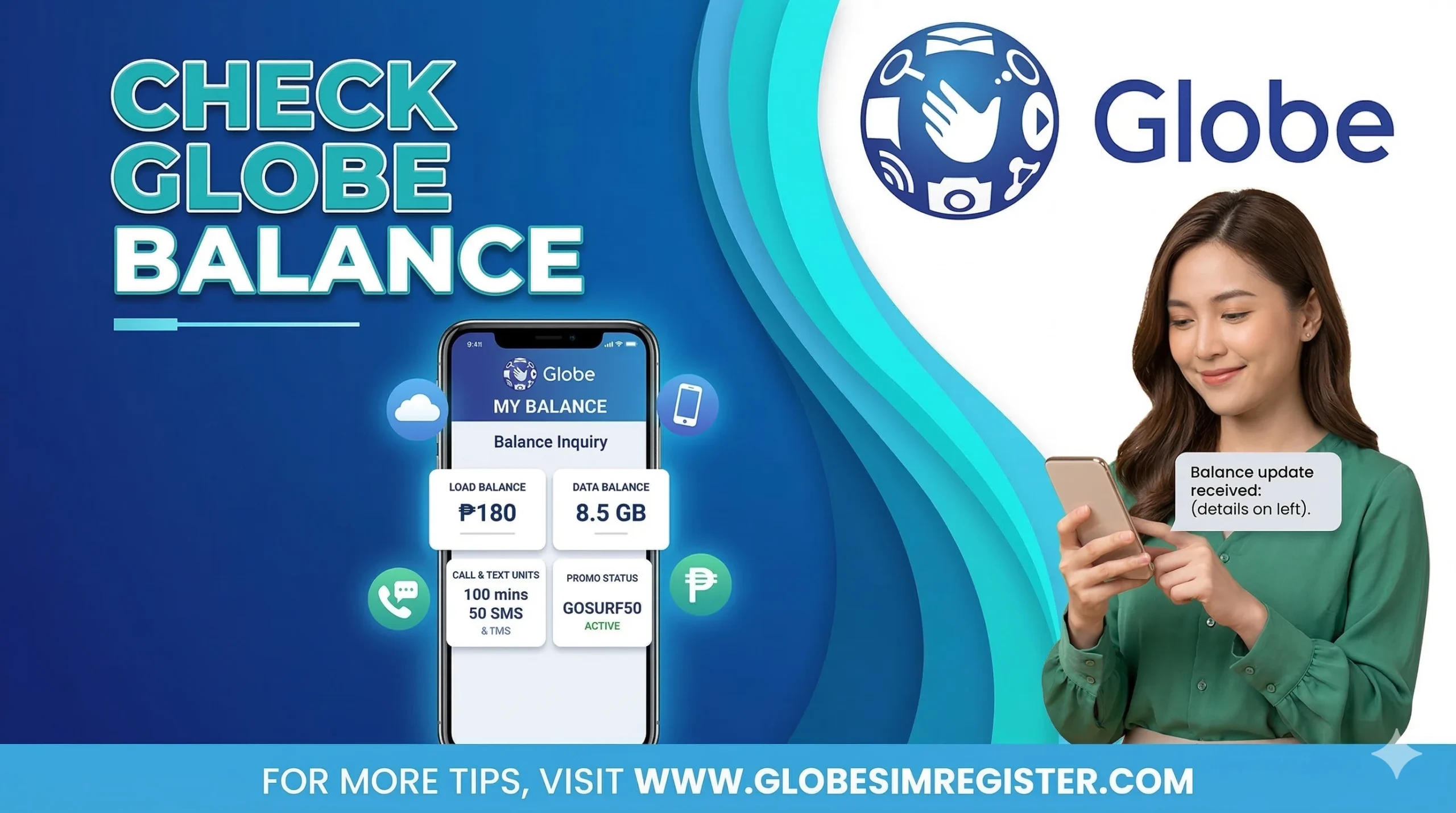
The GlobeOne app is the most modern way to manage your account. It shows you everything in one place.
- Step 1: Download and open the GlobeOne app on your smartphone. Log in with your details.
- Step 2: Look for the search icon or bar. Type the words “track your balance” and hit search.
- Step 3: The app will show your account details immediately.
- Step 4: You can see different categories, such as your regular load balance and your active data promos.
- Step 5: You will see how much you have used, what is left, and when your promo will expire.
2. Checking via SMS (Text 8080)
If you do not have an internet connection, sending a text message is a great alternative. It is fast and does not cost anything.
- Open the messaging app on your mobile phone.
- To see your regular load, type BAL and send it to 8080.
- To see how much data (MBs or GBs) you have left, type DATA BAL and send it to 8080.
- Wait for a few seconds. You will get a reply message from Globe with all your details.
This text method works for standard mobile SIM cards and also for Globe at Home WiFi users.
3. Using USSD Code (*143#)
This is a “dial-up” method that works on any phone, even older models that are not smartphones.
- Open your phone’s dial pad (where you type phone numbers).
- Dial *143# and press the call button.
- A menu will pop up on your screen. Your current load balance is usually shown right at the top.
- If you want to check your data, reply with 0 and press send.
- Then, reply with 1 and press send again.
- Globe will send you a text message shortly after with your full data report.
4. Through Customer Care
If the digital methods are not working, you can talk to a person or use the automated voice system.
- Dial 211 using your Globe SIM.
- Follow the voice prompts to ask about your balance.
- The system might ask for your mobile number to verify your identity.
- Once verified, the representative or the automated voice will tell you your remaining balance.
Which Balance Inquiry Method is Best for You?
Depending on your situation, one method might be better than the others. Here is a quick summary:
| Method | Speed | Cost | Internet Needed? | Best Used For |
| Code (*143#) | Very Fast | Free | No | Quick check with no data |
| Text (8080) | Fast | Free | No | Checking specific data MBs |
| GlobeOne App | Medium | Free | Yes | Full details and promos |
| Call (211) | Slow | Free | No | When you need extra help |
How to Check Balance for Globe Pocket WiFi
Monitoring your Pocket WiFi is slightly different because the device does not have a screen for texting. The best way is through the app.
- Connect your phone to your Globe Pocket WiFi signal.
- Open the GlobeOne app.
- Search for “Track balance” in the app menu.
- Choose the Globe Pocket WiFi option from the list of devices.
- Your data and load info will appear on the screen.
Helpful Tips
- Use Voice Commands: You can ask Google Assistant or Siri to send the text for you. For example, say, “Hey Google, send a text to 8080 saying DATA BAL.”
- Check Often: Use the GlobeOne app regularly to avoid running out of data in the middle of an important task.
- Turn on Notifications: The app can send you an alert when your balance is getting low.
Common Problems & Fixes
Sometimes, things don’t work perfectly. Here is how to fix common issues:
The App is Not Opening
Ensure you are using the latest version of the GlobeOne app from the App Store or Play Store. Check that your internet is active. You can also try clearing the app cache in your phone settings.
I Am Not Getting a Text Back
If 8080 does not reply, check your signal bars. Make sure you typed the keyword correctly (BAL or DATA BAL). If the network is busy, wait a few minutes and try again.
The Balance Seems Wrong
Sometimes the system takes a few minutes to update after you buy a promo. If it still looks wrong after an hour, call the 211 helpline for assistance.
Common Problems & Fixes
Quick solutions for GlobeOne and Network connectivity
The App is Not Opening
App CheckEnsure you are using the latest version of the GlobeOne app from the App Store or Play Store. Check that your internet is active and try clearing the app cache in your phone settings.
I Am Not Getting a Text Back
SMS CheckIf 8080 does not reply, check your signal bars. Ensure the keyword is correct (BAL or DATA BAL). If the network is busy, wait a few minutes and retry.
The Balance Seems Wrong
Update CheckThe system may take a few minutes to update after purchasing a promo. If it still looks incorrect after an hour, contact support for further investigation.
Still Need Help?
HotlineIf none of the steps above work, you can reach out directly to the official helpline for professional assistance.
Frequently Asked Questions (FAQs)
How do I check my Globe balance?
You can use the GlobeOne app, text BAL to 8080, or dial *143#.
Can I check my data balance for free?
Yes, texting 8080 and dialing *143# are free services provided by Globe.
What is the best way to see my promo expiration date?
The GlobeOne app is the best tool for this, as it clearly lists the date and time your promo ends.
Conclusion
Globe Telecom makes it very easy to keep track of your load and data. Whether you prefer using an app or a simple text message, you have many options. By following the steps above, you will never have to worry about unexpectedly running out of balance. If you ever get stuck, the 211 helpline is always there to help you.
One Comment