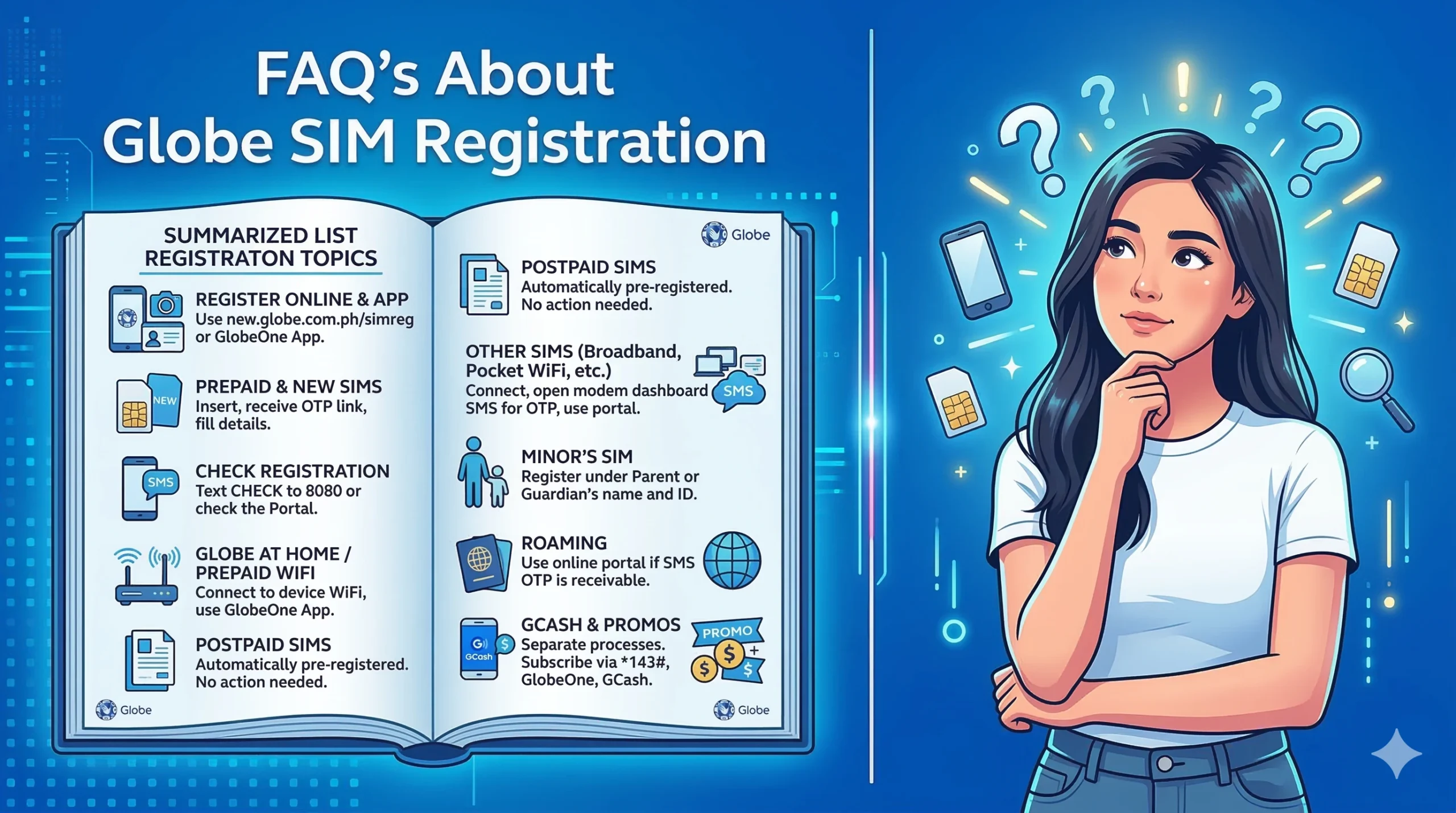
Frequently Asked Question on Globe SIM Registration Status Check & Verification
The registration process for Globe SIM cards in the Philippines is a mandatory requirement under the SIM Registration Act. Here are the answers to your specific questions to help you get everything set up correctly.
Online Portal: Visit the official registration link: [suspicious link removed]. Enter your mobile number, verify the OTP, and upload a photo of a valid government ID.
GlobeOne App: Download the app, log in, and look for the “Register your SIM” banner on the dashboard. This is often the smoothest method as it guides you through the photo upload step-by-step.
Insert your new SIM into your phone. You will likely receive a text message from Globe with the registration link. Follow the same steps as the online portal: verify your number via OTP, fill in your personal details, and upload your ID and a “selfie” for verification.

You can check your status by:
- Text: Send
CHECKto 8080. - Portal: Go to the registration site and enter your number; it will notify you if the number is already in the database.
- GlobeOne App: Your profile status will usually indicate if the account is verified/registered.
Connect your phone or laptop to the WiFi network of your Globe At Home device. Access the dashboard via the GlobeOne App by adding your Prepaid WiFi number. Follow the registration prompts within the app. You will need the physical SIM number (MSISDN) found on the device’s box or the dashboard.
If you are a Postpaid customer, Globe has already registered your SIM using the data you provided during your plan application. You do not need to do anything further unless Globe contacts you specifically to update your information.

Retailer SIMs must be registered through the standard [suspicious link removed]. Ensure you select the correct category if prompted, as these are often tied to business entities.
Similar to Prepaid WiFi, you can register these through the GlobeOne App. If the SIM is in a modem, you may need to log into the modem’s web interface (usually 192.168.254.254) to view the OTP sent by Globe during the registration process.
Connect your phone to the Pocket WiFi.
Open your browser and go to the modem’s gateway (usually 192.168.8.1 or 192.168.1.1).
Keep the SMS inbox of the modem open in one tab.
In another tab, go to the [suspicious link removed].
When the portal sends an OTP, check the modem’s SMS inbox tab to retrieve it.
SIM cards for minors must be registered under the name of a parent or legal guardian. Use the guardian’s ID and information during the registration process.
If you are abroad, you can still register via the [suspicious link removed] as long as you can receive the OTP via roaming SMS. If you cannot receive the OTP, you may need to contact Globe’s official support channels on Facebook Messenger or Twitter for manual assistance.
Registering your SIM for the law is separate from GCash, but they work together.
- Download the GCash App.
- Enter your Globe number.
- Fill in your details and set a 4-digit MPIN.
- Crucial: To use all features, you must “Get Fully Verified” by taking a photo of your ID and a selfie within the GCash app.
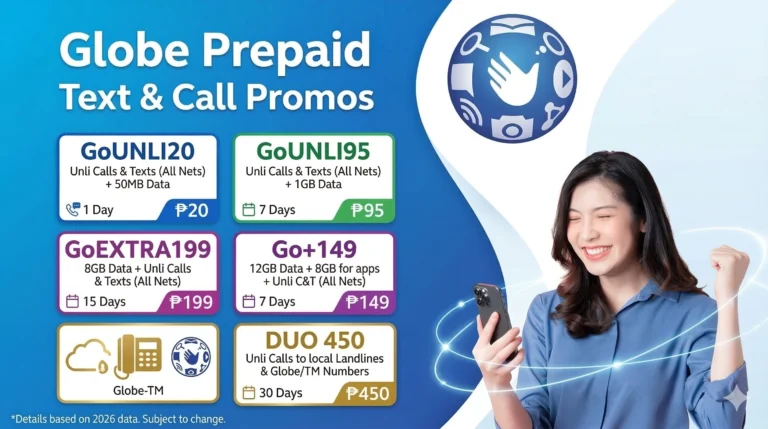
Once your SIM is registered with the government, you can subscribe to promos via:
- *Dialing 143#: The easiest USSD menu for all Globe promos.
- GlobeOne App: Offers exclusive data deals and “Go” promos.
- GCash: Go to “Buy Load,” select your number, and browse the “Mobile Data” tab.